How AI Works With Revit: A Simple Guide for Architects

You have probably seen the phrases everywhere: AI with Revit, ChatGPT and Revit, Revit API, Dynamo, Python, BIM automation. They are often thrown together as if they all mean the same thing. They do not.
Here is the idea this article will make clear:
AI does not simply “become Revit.” AI can understand an architectural instruction. Then, through the right software connections and tools, it can help produce instructions that Revit can carry out.
The basic workflow looks like this:
ARCHITECT → AI → CONNECTION / TOOL → REVIT → BIM MODEL → ARCHITECT REVIEW
By the end, you will know what each piece does, where it fits, and what you can realistically expect. No programming background needed.
Show Image
AI can assist with Revit workflows through appropriate tools, APIs and automation methods.
The Simplest Explanation of How AI Works With Revit
Let’s start with the full picture. Then we will unpack every part.
ARCHITECT
    ↓
AI
    ↓
UNDERSTANDS THE REQUEST
    ↓
GENERATES INSTRUCTIONS
    ↓
API / DYNAMO / PYTHON / ADD-IN / TOOL
    ↓
REVIT
    ↓
BIM MODEL
    ↓
ARCHITECT CHECKS RESULT
Here is what each box means in plain language.
Architect. You. You set the design intent: what you want and why.
AI. A system that reads your request in everyday language and works out what it means. It can also write text, formulas, logic and code.
Understands the request. AI figures out the details: how many walls, what size, what relationships.
Generates instructions. AI turns your request into something a computer can follow, such as a script or a step-by-step logic.
API / Dynamo / Python / add-in / tool. This is the connection layer. It carries instructions into Revit. We will explain each one shortly.
Revit. The BIM software where the work actually happens.
BIM model. BIM stands for Building Information Modeling. The BIM model is the intelligent 3D model, with walls, doors, levels and data, that lives inside Revit.
Architect checks result. You verify that what appeared matches what you meant.
Notice something? The architect is at both ends. That is not an accident.

The Core Idea: AI Is Not the Software
Think of AI as an intelligent layer. It sits on top of your tools and can work with them, but only through controlled connections.
Four words get mixed up all the time, so let’s separate them.
Software is the program where the work happens. Revit is software. It holds your model.
AI is the part that understands language and generates ideas, text and code. It reasons about a request. By itself, it does not live inside Revit.
Automation means a task runs by following rules, without you doing each step by hand. Think of a schedule that fills itself in, or a script that renames 200 views.
Integration is the link between two systems. It lets AI and Revit exchange information.
Here is an architectural way to picture it. Revit is the building site. AI is a smart consultant in an office across town. Automation is a repeatable construction method. Integration is the phone line, the drawings and the site instructions that let the consultant’s advice reach the site.
Without the connection, the consultant can still advise you. But nothing gets built on site.
Before Connecting AI to Revit, Understand What AI Can Do
Here is good news. AI can already help Revit users without touching Revit at all.
You can use AI to:
- Explain Revit concepts, such as the difference between a type parameter and an instance parameter
- Suggest workflows for a task you are unsure about
- Organize project information into clear lists
- Write formulas for schedules
- Generate scripts
- Explain error messages
- Create Dynamo logic
- Generate Python code
- Help structure BIM data
- Prepare schedule layouts or naming systems
- Plan repetitive tasks before you do them
In all of these cases, AI is working like a very fast assistant sitting next to you. You still do the clicking in Revit.
The distinction that matters most
Imagine AI writes you a script to place 40 doors. You read it and it looks great.
Has the Revit model changed? No.
A script that has been written but not run is just text. The model only changes when something actually executes that script inside Revit, or through a Revit-connected tool.
KEY IDEA: AI can generate instructions, but the software still needs a way to execute them.
Keep this in mind. It will make the rest of the article much easier.
Why AI Cannot Simply “Click Revit” by Itself
Many people ask: “If ChatGPT is so smart, why can’t it just open Revit and move my wall?”
The answer is that there are two different abilities here:
- Understanding an instruction
- Performing an operation inside another application
AI is strong at the first one. The second one needs a connection.
An office analogy
Imagine you tell your assistant: “Move the bedroom wall 500 mm.”
The assistant understands you perfectly. But the drawings and the model still need to be updated. Someone has to carry that instruction into the actual documentation system.
If the assistant has no access to the system, the instruction stays on paper.
In software, it works the same way:
AI → communication layer → Revit
The AI understands. The communication layer carries the instruction. Revit acts.
Not every setup is the same
The exact connection depends on the tools and integrations you use. Some AI chat tools only produce text. Some can be linked to software through add-ins or other tools. Some are built into a product by its developer.
So never assume that every AI system can directly control Revit. Many cannot. What an AI can do with Revit depends on what has been connected to it.
API Explained Without Programming Jargon
You will hear the word API constantly in this topic. Here is what it means.
API stands for Application Programming Interface.
That sounds heavy. Here is the simple version:
An API is a defined way for one software system to talk to another.
It is a set of agreed rules about what you can ask for and how you ask.

An architectural analogy
Think of a design studio and a building authority.
You cannot walk into the authority’s back office and rearrange files. You submit through a controlled channel: a form, a portal, a counter. The channel decides what you may ask for and what format it must be in.
In this picture:
- AI is the architect with a request
- API is the controlled communication channel
- Revit is the BIM environment
AI
 ↓
API
 ↓
REVIT
What the Revit API does
Revit has its own API. It gives software and scripts approved ways to ask Revit to do things, or to read information from it.
For example, through the Revit API, a properly built tool may be able to:
- Read the name of every room in a model
- Check a parameter value on a door
- Create or change certain elements
Think of the API as the list of “things you are allowed to ask Revit to do.” It is not a magic button. It is a menu with rules.
What a tool can do through the API depends on the Revit version, the way the tool was built, and the permissions it has.
Dynamo and Python: The Tools Between AI and Revit
Now let’s look at two names you will hear again and again: Dynamo and Python. They are the most common paths from an AI-written idea to a result in Revit.

Path A: AI → Dynamo → Revit
Dynamo is a visual programming tool that works with Revit. Instead of typing code, you connect boxes called nodes with lines.
Picture a flowchart. One node gets all the walls. The next filters them by type. The next reads a parameter. The next changes a value. Each node does one small job, and the lines show the flow.
Many architects find this easier than code, because it looks like a diagram of your thinking.
How AI fits in:
- AI can explain what a Dynamo graph does
- AI can suggest which nodes you might need
- AI can describe the logic step by step, so you can build it
- AI can help you fix a graph that is not working
The graph is then run in Dynamo, which talks to Revit.
AI → Dynamo → Revit
Path B: AI → Python → Revit API → Revit
Python is a popular programming language. It reads almost like simple English, which is why it is common in design automation.
How AI fits in:
- AI can write Python code for a task
- AI can explain code someone else wrote
- AI can find mistakes in a script
But here is the catch. The code must still be run inside a suitable Revit environment or through a connected tool. That environment uses the Revit API to talk to the model.
AI → Python → Revit API → Revit

Generating is not executing
Whichever path you use, remember the difference:
- AI may generate code, logic and instructions.
- Execution is a separate step, done by a tool connected to Revit.
Some integrations blur this line by letting an AI tool trigger execution for you. When they do, that is a feature of the specific tool, not of AI in general. We will come back to that.
From an Architectural Instruction to a Revit Model
Let’s follow one simple example from start to finish.
You say:
“Create four walls forming a 10 m × 12 m rectangular room.”
Here is what happens conceptually.
Step 1: Human instruction
You give the design intent. At this point, nothing exists in the model.
Step 2: AI interpretation
AI reads your sentence and picks out the key facts:
- Dimensions: 10 m by 12 m
- Number of walls: four
- Geometry: a rectangle, so opposite walls are equal and corners are at right angles
- Relationships: the walls must connect end to end and close into a room
AI also notices what is missing. Which wall type? Which level? How tall? A good workflow answers these before going further.
Step 3: Instruction generation
AI produces a set of instructions or code. For this request, that might be four pairs of start and end points, plus the commands to create a wall between each pair.
Step 4: Connection
The instructions travel through whatever Revit interface or tool is available. This could be a Dynamo graph, a Python script run inside a Revit environment, or an add-in.
Step 5: Revit execution
Revit receives the instructions and creates or changes the BIM elements. Walls now exist in the model.
Step 6: Human verification
Now it is your turn. Check:
- Dimensions. Is it really 10 m by 12 m?
- Location. Is the room where you wanted it?
- Element type. Is it the right wall type, not a default one?
- Constraints. Are the walls on the correct level, with the right height and joins?
- Design intent. Does this actually solve the design problem?
Step 7: Revision
If something is off, you go around again:
Human → AI → Tool → Revit
Say what to fix, let AI adjust the instructions, send them through, and check again.
IMPORTANT: Always verify AI-generated code and model changes before using them in a real project.
Practical Examples of AI-Assisted Revit Workflows
What can this actually help with? Here are common areas. Whether each one is possible for you depends on your Revit version, API access, integration, permissions and workflow setup.
Geometry
- Walls and floors from defined dimensions
- Openings placed by rule
- Basic repetitive elements, such as a row of columns or equal-spaced partitions
Data
- Filling in and checking parameters
- Applying consistent naming
- Classification of elements
- Schedule preparation
Documentation
- Repetitive annotation workflows
- Preparing schedules
- Sheet organization, such as creating and naming sheets in bulk
Analysis and checking
- Spotting patterns in model information
- Checking data consistency, such as missing room numbers
- Assisting with repetitive validation tasks
Workflow assistance
- Scripts
- Dynamo graphs
- Formulas
- Automation logic
Notice the pattern. These are mostly repetitive, rule-based tasks. Rules are exactly where automation works best.
Notice, too, what is not on the list: deciding the best layout, responding to the site, or judging the quality of a space. That brings us to the most important section.
Where the Architect Still Matters
AI can assist with:
- Repetitive operations
- Information processing
- Code generation
- Workflow automation
- Exploring options
But architectural responsibility is much bigger than those tasks. It includes:
- Design intent. Why this building, shaped this way?
- Site response. Sun, wind, views, neighbors, topography
- Client needs. What people really need, which is often different from what they first say
- Building regulations. What the law requires and how to meet it
- Constructability. Whether it can be built, by whom, and how
- Coordination. Structure, services, consultants and contractors
- Material decisions. Performance, cost, durability, feel
- Professional judgment. Experience and accountability
- Checking results. Never trusting output blindly
ARCNET principle: Automation can execute a decision. It does not automatically make the right architectural decision.
If you tell an automated workflow to place 200 doors in the wrong spots, it will place 200 doors in the wrong spots. Very quickly. The speed is useful only when the decision behind it is sound.

7 Things People Get Wrong About AI + Revit
1. “ChatGPT is Revit.”
No. ChatGPT is an AI system. Revit is BIM software. They are separate products that can be linked through tools.
2. “AI can automatically see my entire Revit model.”
Not inherently. What AI can see depends on the connected tools and the permissions given. A chat window with no connection sees only what you paste into it.
3. “AI-generated code always works.”
No. Code can contain mistakes, use features that do not exist in your Revit version, or do something you did not intend. It needs testing and debugging.
4. “AI eliminates the need to learn Revit.”
No. It makes Revit knowledge more important. You need to understand the software to check whether the automated result is correct.
5. “Automation means no human involvement.”
No. Humans set the intent and review the output. Automation changes the work you do, not whether you are needed.
6. “Every AI + Revit workflow works the same way.”
No. Different tools offer different capabilities. One may only write code. Another may run it. Another may read model data. Always check what a specific tool actually supports.
7. “AI will design the building for me.”
No. AI can support design work, but it does not carry architectural responsibility. That stays with you.
What Should an Architect Learn First?
If this all sounds exciting, here is a sensible order. Skipping ahead usually leads to frustration.

Level 1: Learn basic Revit
Understand walls, floors, doors, windows, levels, views, families and parameters. If you are starting here, our Revit Learning Roadmap for Beginners and Revit Skills Beginners Should Learn First are good places to begin.
↓
Level 2: Learn basic automation concepts
Understand repetitive tasks, workflows, parameters and rules. Ask yourself: “What do I do over and over that follows a pattern?”
↓
Level 3: Learn Dynamo
Understand visual programming: nodes, inputs, outputs and flow.
↓
Level 4: Learn basic Python
Learn variables, lists, loops and functions at a practical level. You do not need to become a developer.
↓
Level 5: Understand the Revit API
Learn what can be accessed and what can be modified inside a model.
↓
Level 6: Use AI as a workflow assistant
Now AI becomes much more powerful in your hands. Ask it to:
- Explain unfamiliar code or graphs
- Generate first drafts of scripts
- Debug errors
- Improve existing logic
- Document what a workflow does
- Automate the repetitive parts
If you want a wider view of the tools available, see AI Tools Every Architect Should Know in 2026. When you are ready to move from general AI use to practical routines, read ChatGPT Workflows for Architects.
DESIGN TIP: Learn the software first. Then learn how AI can extend your workflow.
Why This Matters
Many people start with the question:
“Which AI tool should I use?”
It is a natural question. But there is a better one:
“How does the AI connect to the software where my actual architectural work happens?”
This shift matters because it changes how you judge tools. A tool that writes beautiful text but has no path into your BIM environment will not change your Revit model. A tool with a solid integration might save you hours, but only if you understand what it is doing.
Understanding the connection also protects you from unrealistic expectations. You may see claims like “type one sentence and AI builds your whole BIM project.” That is not how the workflow works. Real results come from a combination of:
human intent + AI reasoning + software interfaces + automation + verification
Remove any one of those, and the result gets weaker or riskier.
When you understand this, you can ask better questions of any tool. What can it read? What can it change? Who runs the code? How do I check the result? You become a smarter buyer, a safer user, and a better collaborator with the technology.
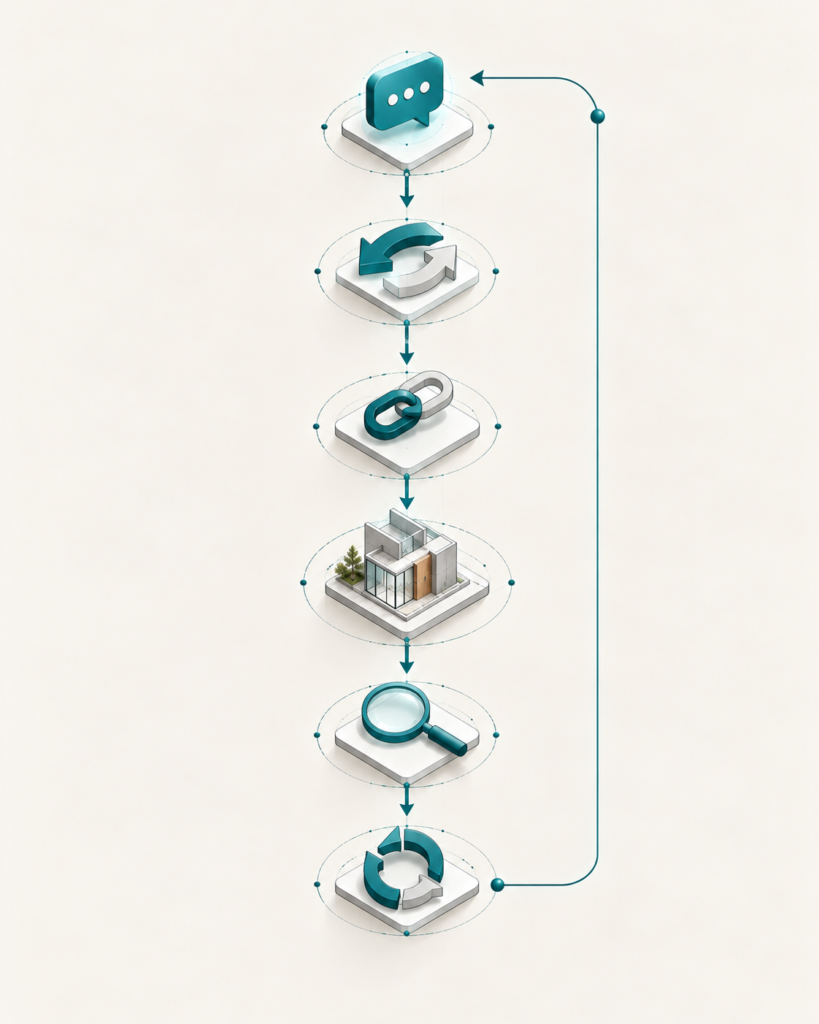
A Simple Framework: Ask, Translate, Connect, Execute, Check, Refine
Here is an easy way to remember the whole workflow.
ASK → TRANSLATE → CONNECT → EXECUTE → CHECK → REFINE
- ASK. Tell AI what you want, in clear architectural language.
- TRANSLATE. AI converts your request into logic, instructions or code.
- CONNECT. A suitable interface carries those instructions to Revit.
- EXECUTE. Revit performs the operation.
- CHECK. You verify the result against your intent.
- REFINE. Make corrections and repeat.
When something goes wrong, find which step failed. Was the request unclear (Ask)? Was the code wrong (Translate)? Was there no way to run it (Connect)? That makes troubleshooting much easier.
Quick Reference: Who Does What?
| Component | Simple meaning | Role |
|---|---|---|
| AI | Understands and generates | Intelligence |
| Revit | BIM environment | Model |
| API | Communication interface | Connection |
| Dynamo | Visual programming | Workflow automation |
| Python | Programming language | Automation / code |
| Add-in / tool | Software extension | Integration |
| Architect | Sets intent and verifies | Human judgment |
No row here is “better” than another. Each plays a different part, and which pieces you need depends on the task. An add-in is simply a small extra program installed into Revit to give it new abilities.
Frequently Asked Questions
Can ChatGPT control Revit? Not by itself. A chat AI can write instructions and code. Controlling Revit requires a connection, such as a tool or integration that can pass those instructions into Revit. What is possible depends on the specific setup.
Can AI create a Revit model? AI can help generate the instructions for creating elements. A Revit model is created only when those instructions are executed through a Revit-connected tool, and the result still needs review.
What is the Revit API? It is the official set of rules and functions that lets software and scripts read information from Revit and request certain changes.
What is Dynamo in Revit? Dynamo is a visual programming tool that works with Revit. You connect nodes to build workflows without writing everything as code.
Can ChatGPT write Revit Python code? Yes, it can generate Python code for Revit tasks. But the code may contain errors and must be tested, and it only changes a model when executed in a suitable environment.
Is Python necessary for AI + Revit? No. Dynamo, existing add-ins and some integrated tools can work with little or no coding. Python gives you more flexibility, though.
What is the difference between Dynamo and Python? Dynamo is visual: you connect boxes. Python is text-based: you write code. Dynamo can also include Python, so they are not rivals.
Can AI read a Revit model? Only if it is given access. That access depends on the tools, permissions and settings involved. Without a connection, AI sees only what you paste or upload.
Can AI automate repetitive Revit tasks? Often it can help, especially with rule-based tasks like naming, parameter checks or sheet setup. It usually works by helping create the automation, which is then run through Revit-connected tools.
Will AI replace Revit skills? No. Revit knowledge helps you give clear instructions and catch mistakes in the results.
Can AI design a complete building in Revit? AI can assist with parts of the process. Designing a building involves judgment, regulations, context and responsibility that stay with the architect.
What should beginners learn first? Revit fundamentals. Then basic automation ideas, Dynamo, simple Python, and the Revit API. Use AI as an assistant throughout.
The Future of AI-Assisted Architecture
The future of AI-assisted architecture is not simply AI replacing software.
It is the architect learning how to connect intelligence with the tools where architectural work actually happens.
You provide the design intent.
AI helps interpret and generate.
The connection carries the instruction.
Revit executes it.
You verify the architecture.
Don’t ask only, “What can AI do?” Ask, “How can AI connect to the software where I work?”